
Send a green taxi route
Before first use, check EuroScope settings.
Follow the Greens
Section titled “Follow the Greens”Green centerline lights on the pilot’s cleared taxi route. You draw the route, the pilot’s sim lights it.
Before you start
Section titled “Before you start”- A published taxi network at the airport (
FTG unavailable - no networkif there is none). - The pilot running XPGuard and accepting the request.
- A claim at that airport: BAR on any runway or APRON, or THL on a runway. No claim, no FTG - including stop/go and handoff on a running session. A REL claim only loads runway data.
- Runway data loaded before you draw a route.
If light status is unavailable, wait before sending a new route or pressing GO. You can still save a local draft. STOP, CLEAR and switching lights OFF still work. Existing greens can shorten, but cannot extend until status returns. The instrument panel explains why a send is paused. A failed send keeps your draft: SEND it again or DROP it.
If runway data changes, use EDIT on a live route or a draft to rebuild it from its saved points. Without saved points, draw a new route. For a stopped route, CLEAR it and draw a new one. Reloading identical data does not require a redraw.
Start a session
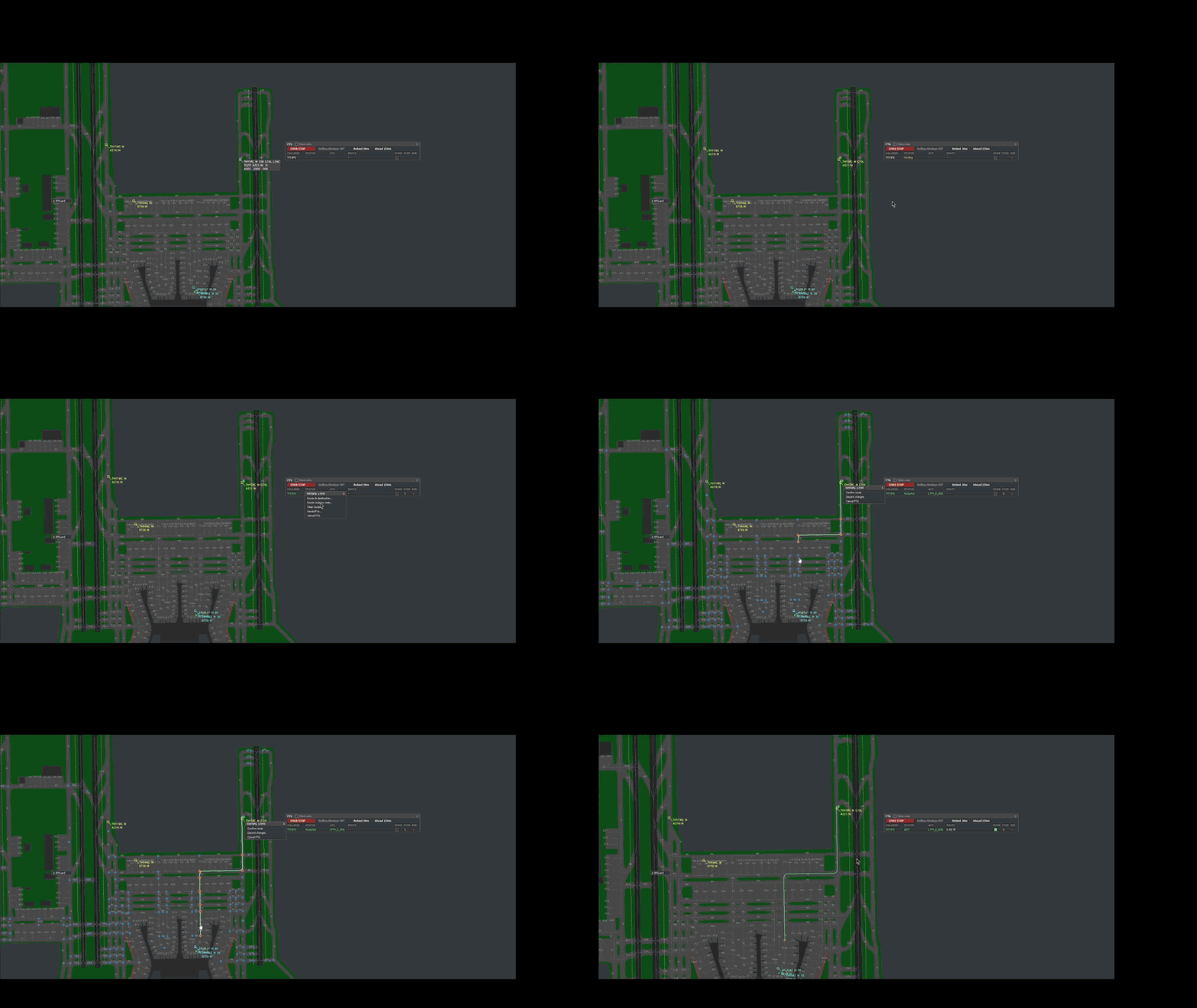
Section titled “Start a session”- Click the aircraft’s green XPG badge, its callsign in the FTG panel, or a list cell. The FTG menu opens.
REQ- request FTG. Stripe amber, statusPending. Declined: redREJECTED.- Draw the route:
STD >- a published standard route.TO- click the destination node. Shortest route.NODE- click each via in order.Ctrl+clickremoves one, drag moves one.
- Optional:
Shift+clickthe route to cap where the greens end (a stand mid-segment). SENDsends it.DISCARDdrops it.
After SEND:
- The greens light from the aircraft forward.
- They hold short of the first lit red bar ahead and continue when it clears. The drawn route is cut there on your scope too.
- Default is a rolling window: 30 m behind, 250 m ahead. Change it on the FTG panel.
The FTG menu
Section titled “The FTG menu”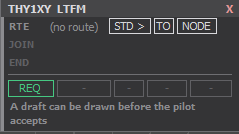
Three rows and five main buttons.
| Row | Explanation | Buttons |
|---|---|---|
| RTE | (no route) · DRAFT · SENT · STOP · STD <name>, then the taxiways |
STD > / TO / NODE with no route, EDIT with one |
| JOIN | The way in to a standard route | 1-4 (Suggest join: ON), MANUAL to draw it |
| END | The holding points the standard route can end at | numbered, also on the radar · NO HOLD |
| Slot | Main Buttons |
|---|---|
| 1 | REQ request · SEND / SAVE (before accept) · STOP / GO · ADOPT · ACCEPT |
| 2 | DISCARD drop the preview · DROP delete a saved draft |
| 3 | HO > handoff flyout. Amber = your offer pending, click withdraws |
| 4 | CLEAR clear the route, keep the session |
| 5 | END end the session · REJECT a handoff |
ENDandREJECTare armed: two clicks within 3 seconds.- Nothing reaches the pilot until
SEND.
Draft a route before the pilot accepts
Section titled “Draft a route before the pilot accepts”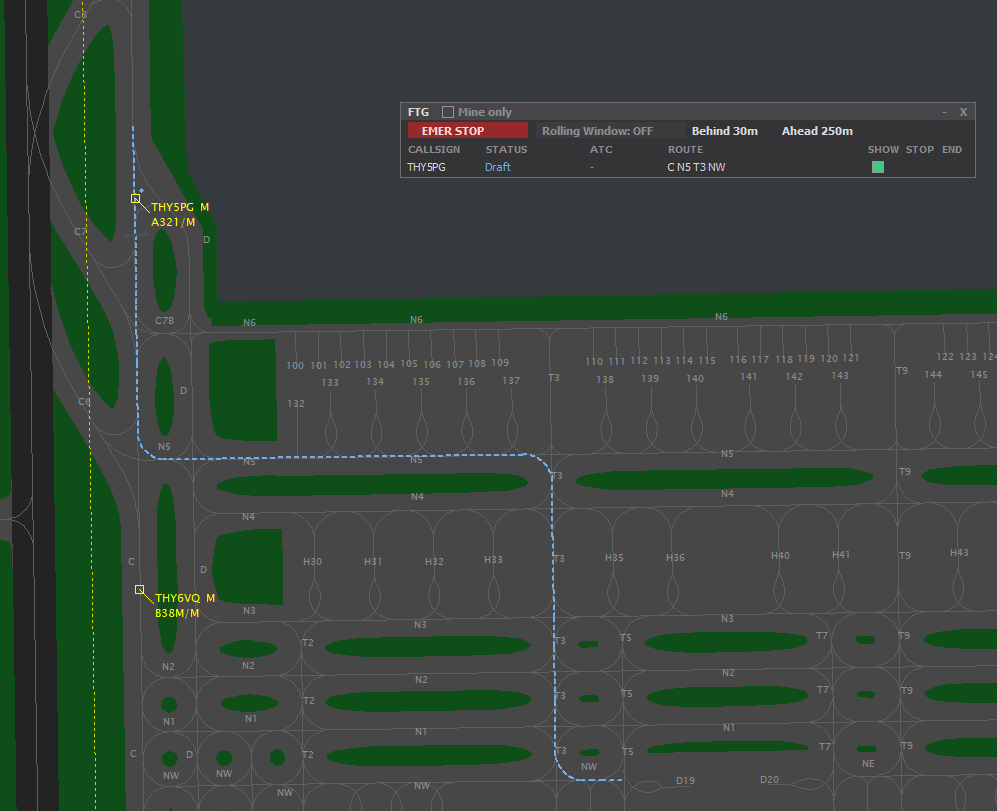
Draw the route before the pilot accepts, send it the moment they do. The draft is local to your EuroScope.
- Draw it the same way (
STD >/TO/NODE), finish withSAVE. - A draft draws dashed blue. Badge blue, RTE reads
DRAFT, panel row blue. EDITto redraw,DROPto delete.- On accept,
SENDappears. - Republished taxi network: redraw it.
Taxiways the pilot’s scenery doesn’t have
Section titled “Taxiways the pilot’s scenery doesn’t have”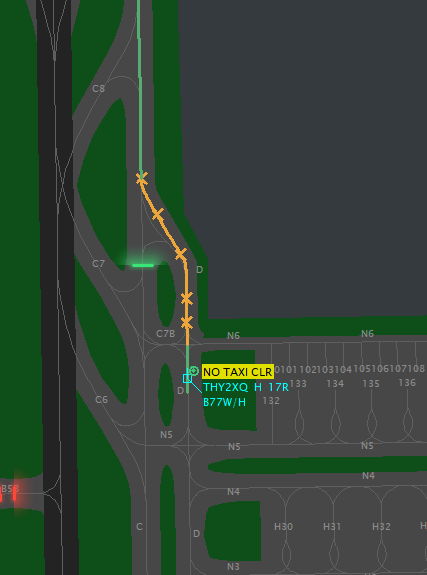
- A taxiway missing from the pilot’s add-on scenery draws amber with ✗ marks.
- A warning, not a block: the route sends, but there may be no pavement there. Reroute.
- Drafts show the marks too.
The FTG panel
Section titled “The FTG panel”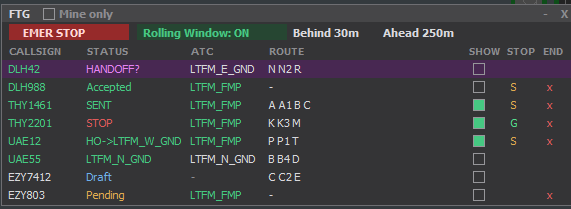
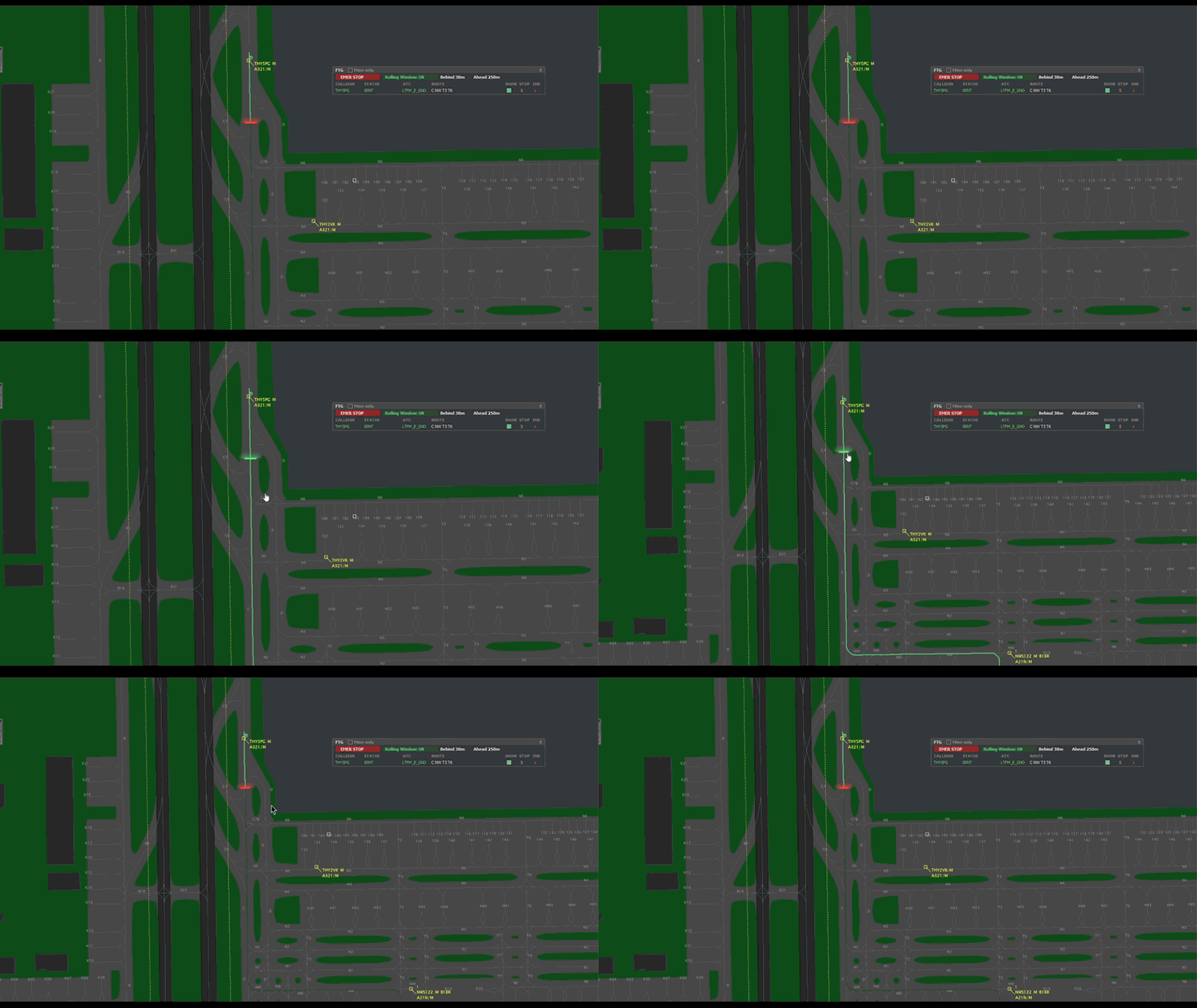
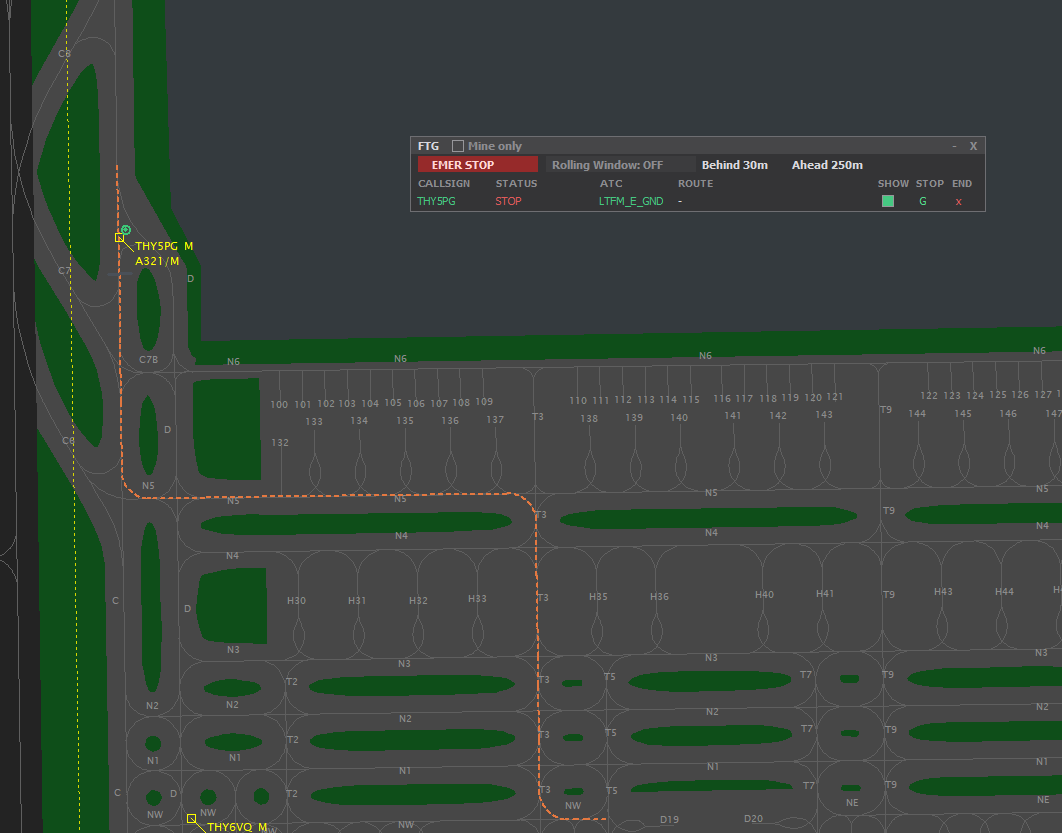
Open it from the XPGuard menu → FTG. It lists the FTG-capable ground traffic at your active airports. Your own aircraft show green.
Columns: CALLSIGN · STATUS · ATC · ROUTE · SHOW · STOP · END.
| Column | |
|---|---|
| CALLSIGN | Click to open the FTG menu. |
| STATUS | The FTG state (below). |
| ATC | Who owns it. Green = you. On other controllers’ rows, STOP/GO and END are not drawn. |
| ROUTE | The nodes it runs through. |
| SHOW | Highlight that route on the radar (a tick). |
| STOP / GO | Darken one aircraft’s greens (route kept) and resume. |
| END | End that session. |
The STATUS values:
| Status | Meaning |
|---|---|
Pending |
Your request is with the pilot. |
REJECTED |
They declined. |
Draft |
Pre-staged, not sent. |
Accepted |
Session up, no route yet. |
SENT |
The route is live. |
STOP |
Greens deliberately dark. GO resumes. |
AT END |
Blinking orange over the status: the aircraft has reached the end of its route. END it. |
DISC |
The pilot’s client dropped. |
ADOPT? / HANDOFF? |
See Handoff & adopt. |
HO->ATC |
Your handoff offer is pending. |
| a callsign | Their session. - = capable, no session. |
Top row:
| Control | |
|---|---|
| EMER STOP | Darken every aircraft at your airports. Sessions kept, resume with GO. |
| Rolling Window: ON / OFF | ON = Behind…Ahead lit, OFF = the whole route. Both hold at a red bar. |
| Behind (0-200 m) · Ahead (30-600 m) | The window size. Behind also sets how far the route stays drawn. |
| Suggest join: ON / OFF | Numbered ways in to a standard route, or straight to MANUAL. |
| Mine only | Filter to your own traffic. |
All of them apply live and save themselves.
Ownership visuals
Section titled “Ownership visuals”- Yours - the shown route draws bright.
- Another controller’s - faded route, dashed badge ring.
- Clicking theirs opens one line:
Controlled by <callsign>. Their panel row shows the callsign; STOP/GO and END are not drawn.
Next: Use a standard taxi route.