
Map an airport in MSFS
Contribution mode
Section titled “Contribution mode”If bars sit wrong, or there is no map for your add-on yet, you can fix it from inside the sim. Click Contribution Mode ▾ on the status card:
- BAR · LEAD-ON · REL - map this airport’s stop bars, lead-on lights and runway entrance lights. It pairs a browser editor with your running sim and mirrors your edits live. It needs a detected add-on scenery, or it maps the built-in airport as its own MSFS · Stock map (from either sim). The Base map is edited from the web editor.
- Taxi Network - the Follow-the-Greens editor. Moderators with the FTG grant only.
If several add-ons cover the airport - or your Publisher pick is not what is loaded - a Which scenery? dialog asks which one you are mapping before the session starts.
While a session runs, a BAR / LEAD-ON / REL row appears on the status card. It picks which part of the map you are editing and mirrors the browser editor’s tabs - switch in either place.
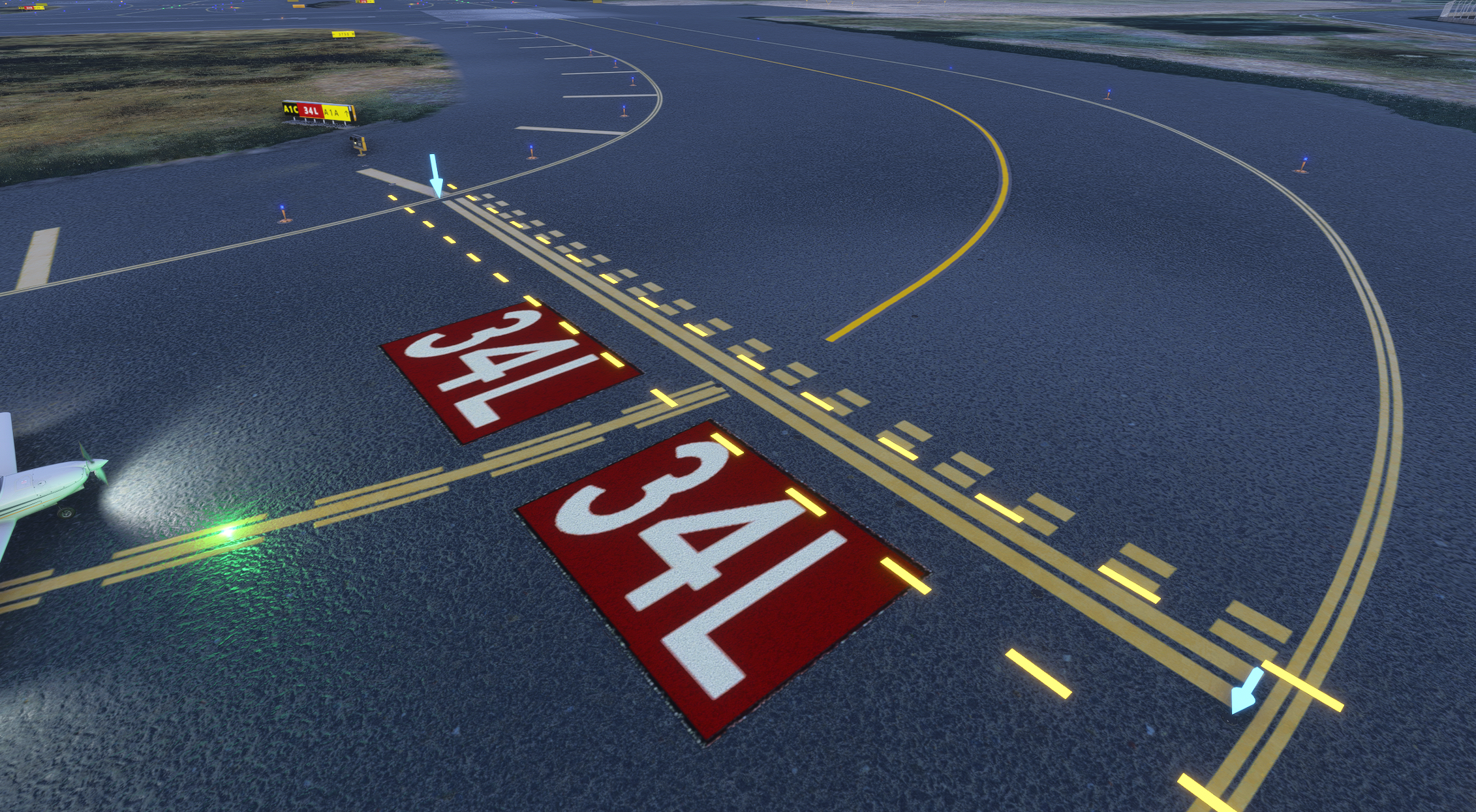
Show exclusion zone checkbox previews the light suppression area.
While mapping, nudge a bar’s shape with global hotkeys that work while the MSFS window has focus:
| Key | Action |
|---|---|
Ctrl + Shift + ↑ ↓ ← → |
Move the selected node 0.5 m. Up/Down along the facing direction, Left/Right along the bar. |
Ctrl + Shift + N |
Jump to the next node. |
Ctrl + Alt + ← → |
Move the IHP lights center position (Stop bar + IHP and IHP only bar types only). |
Ctrl + Shift + E |
Toggle exclusion zone editing mode. Use Ctrl + Shift + ↑ ↓ ← → to expand the exclusion zone. Use Ctrl + Alt + Shift + ↑ ↓ ← → to shrink it. |
More tips:
- Click a bar in the app’s Stopbars list to zoom the editor to it.
- Click a bar in the editor to teleport ~15 m in front of it, facing it.
- Add or remove whole bars in the browser.
For the full walkthrough, see Contributing.