
Stop bars and IHP
You switch the lights only on runways you hold. Take your claims first.
Stop bars
Section titled “Stop bars”A stop bar is a row of red lights across a taxiway at a holding position. Red means hold short.
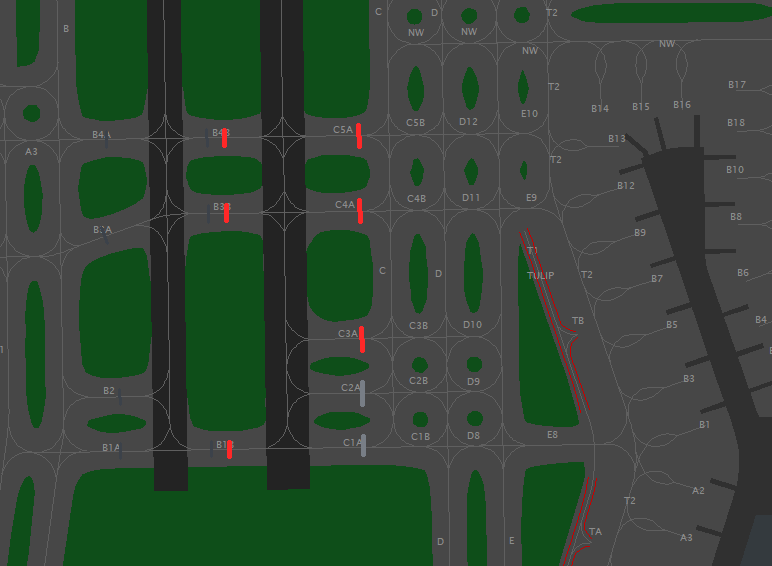
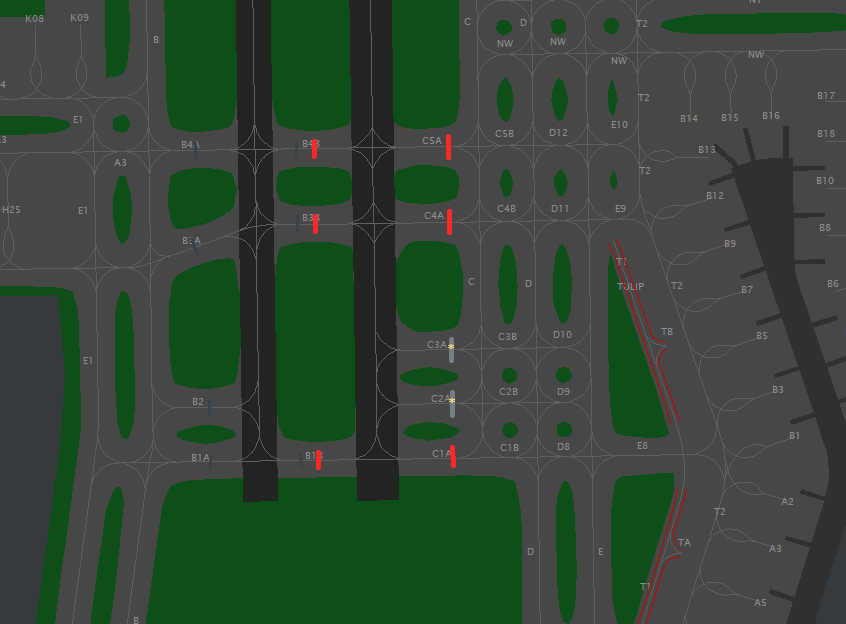
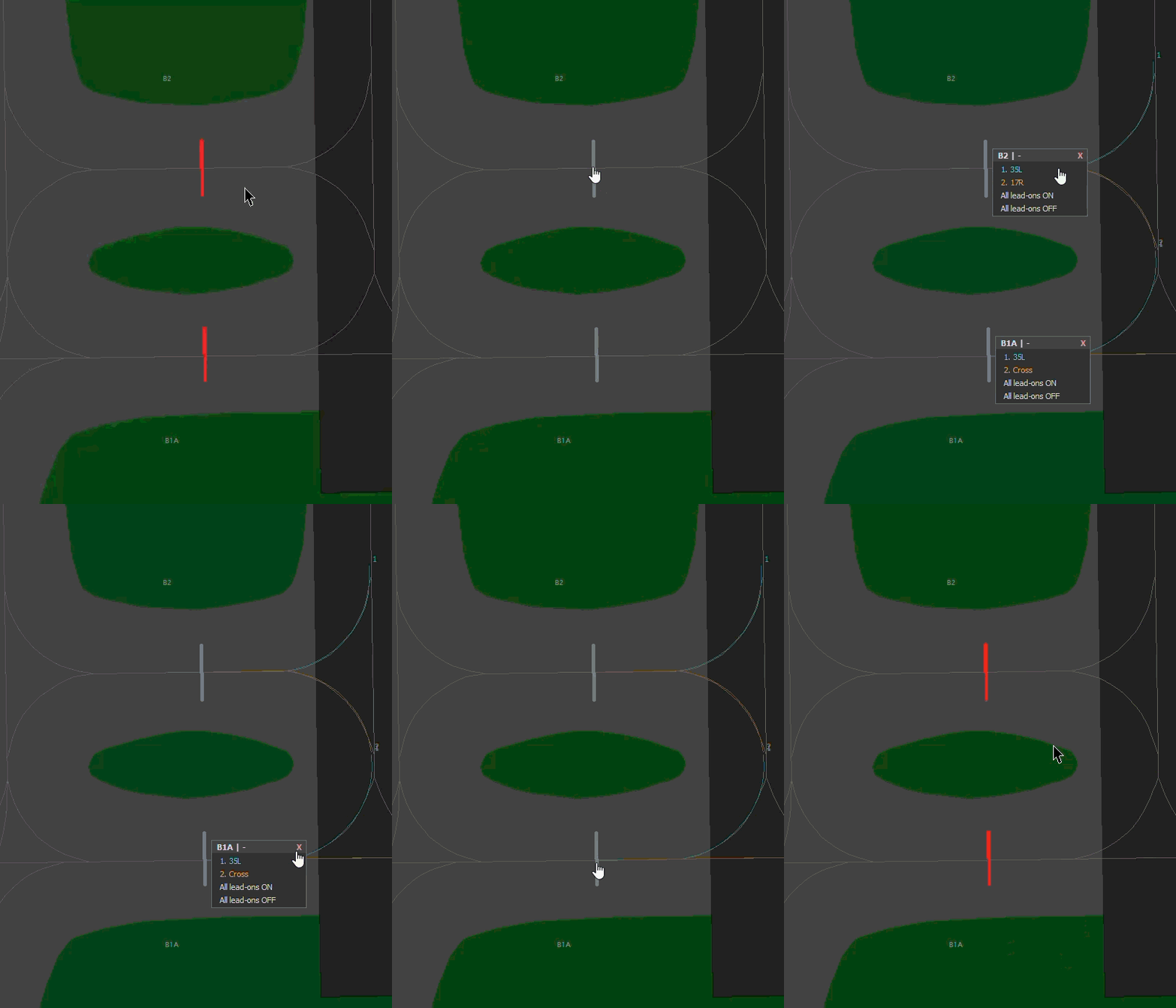
- Left-click a stop bar on the ground radar to set it red or clear it (first figure below).
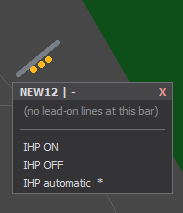
Shift+clickto set it permanently (marked*), soAuto barleaves it alone. Left-click again to release the pin (second figure below).- Right-click any bar to open its bar menu: the lead-on lines beyond it, All ON, All OFF, and the IHP controls.
At a bar with lead-on lines, a left-click may not clear the bar. With indicators on and Automatic on clearance off, the line pick comes up instead. Pick the line to clear. See picking by hand.
Linked stop bars
Section titled “Linked stop bars”Some gates have more than one stop bar, for example one on each side of a wide taxiway. A mapper can link them into a group. One click switches every bar in the group, and the IHP controls follow the group too.
No-entry bars
Section titled “No-entry bars”Some airports publish a no-entry bar - a stop bar the server pins red for everyone (a red-lit no-entry marking, not a controllable bar).
- It is drawn a darker red than a live stop bar, in every bar style.
- It is never clickable - a click on it does nothing, for anyone, on any runway.
- A no-entry bar can be regime-scoped: pinned red only in LVP, or only out of it. In the other regime it is an ordinary, controllable bar.
- Declutter with the
Hide No Entry barstoggle in the BAR section. It hides only the always-red ones; a regime-scoped bar stays visible while its regime runs. Display-only - pilots always see them.
IHP lights
Section titled “IHP lights”An IHP (intermediate holding position) has three amber lights. It comes in two types:
- IHP only - amber lights with no red stop bar.
- Stop bar + IHP - amber lights at a red stop bar. Red takes priority: while the bar is red, the amber stays dark.
How IHP shows on your radar
Section titled “How IHP shows on your radar”Choose the look in the menu’s IHP section:
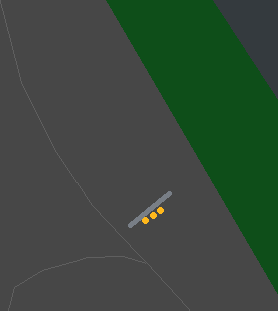
- Dots - three amber dots beside the bar. Filled means lit; dim outlines mean off.
Dot sizemakes them bigger or smaller. - Color - the bar itself turns amber while IHP is lit. Red still takes priority.
Automatic IHP
Section titled “Automatic IHP”By default an IHP is automatic:
- In LVP, the amber is always on.
- Outside LVP, it follows the map’s ON in Non-LVP setting.
- Automatic IHP can light without any controller claim.
Switch an IHP by hand
Section titled “Switch an IHP by hand”- Right-click the bar to open its menu. The runway must be one you hold.
- Choose IHP ON or IHP OFF.
- Choose IHP automatic when the override is no longer needed.
The map must allow ATC override. Otherwise the menu shows only IHP is automatic here, with no IHP ON, IHP OFF or IHP automatic rows.
- An IHP-only position has no red row. Left-clicking it does not switch anything red.
- An OFF override also applies during LVP. An ON override cannot beat red priority.
- To put every IHP you hold back to automatic, use IHP → All IHP automatic in the XPGuard menu. It restores each bar’s own conditions; it does not turn every amber light on.
Use LVP and default states
Section titled “Use LVP and default states”Larger airports have a second, farther-back holding position on many entries - the CAT II/III holding position. It protects the ILS critical area in low visibility.
Every stop bar carries a Default / LVP state. It is set in the map editor and shown in the radar tooltip:
| State | Behavior |
|---|---|
| ON | A regular bar. Lit whenever its runway is claimed, in LVP or out. |
| Non-LVP only (CAT I) | Lit normally, dark while LVP is on. |
| LVP only (CAT II/III) | Dark normally, lit while LVP is on. |
| OFF | Dark in both. Switch it by hand when you need it. |
As in real procedures, only the holding position in use is lit:
- LVP off: bars set to Non-LVP only are lit.
- LVP on - LVP only bars will be lit and Non-LVP only bars will go out.
Declaring LVP per airport
Section titled “Declaring LVP per airport”LVP is declared per airport, from the menu’s LVP (CAT II/III bars) button:
- Controlling single airport - the button itself is the switch: Click it to toggle.
- Controlling multiple airports (top-down) - Click it and the LOW VISIBILITY picker opens: airports under your control can be declared LVP individually.
- The XPGuard button shows
LVPin yellow, with a yellow tab on its edge, while you have declared LVP at any of your airports.