
MSFS settings
Open the app window
Section titled “Open the app window”The window (figure below) is borderless. Resize it from the grip in the bottom-right corner.
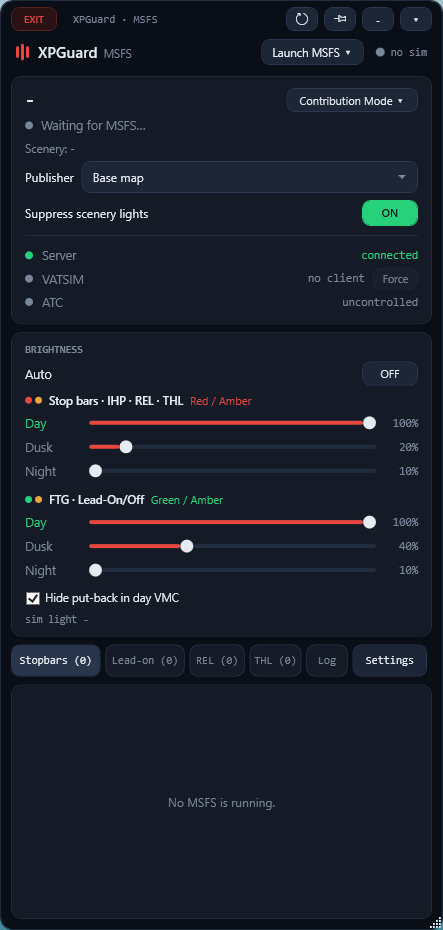
The title bar has a red EXIT on the left. On the right are four buttons:
| Button | Action |
|---|---|
| ⟳ Refresh | Full reconnect: re-detect the airport and scenery, reload the light objects. Use it if the scenery reads wrong. |
| 📌 Pin | Keep the window always on top. |
| - | Minimize to the taskbar. |
| ▾ | Hide to the tray. |
Below the title bar, Launch MSFS ▾ starts the sim. The dropdown offers MSFS 2020 or MSFS 2024. A dot beside it shows whether MSFS is connected.
The status card
Section titled “The status card”The card at the top shows everything about the current airport:
- Airport and a live state line - for example
Active · 20/38 bars · 0/122 lead-on · 2 REL · 3 THL. - Scenery - the add-on detected here, or the built-in airport - plus a Publisher dropdown. See Scenery & publisher.
- Suppress scenery lights - Suppresses the scenery’s own stop bar, lead-on/off and FTG lights, so only XPGuard’s controlled lights show (RECOMMENDED). See Suppress scenery lights.
- Server / VATSIM / ATC - connection state and who is controlling.
- A green
Cancel FTGbanner - appears here while a Follow-the-Greens session is running. This is the home for cancel when the in-sim card is hidden. Contribution Mode ▾- the map editors. See Contribution mode.
Force button on VATSIM row:
- Use Force button when the vPilot VATSIM connection cannot be identified by XPGuard, or when you want to see the live lights without a connection to VATSIM.
Brightness
Section titled “Brightness”The BRIGHTNESS card sets how strong the lights glow. Everything here is remembered between sessions. There are two groups:
- Stop bars · REL · THL - the red lights. Day / Dusk / Night sliders; the three families share the red level.
- FTG · Lead-On/Off - the green and amber lights: Follow the Greens, lead-on and lead-off. Their own Day / Dusk / Night sliders, dimmed separately from the red.
The simulator’s time of day picks the slider. Dawn uses Dusk.
Hide put-back in day VMC (on by default) hides the put-back lights at uncontrolled airports - lead-on/off and the FTG taxiway centerline - in daylight. MSFS 2024 goes by the ambient light, MSFS 2020 by the time of day.
Auto-brightness
Section titled “Auto-brightness”Turn on Auto and XPGuard picks the level for you. It follows the simulator’s light level. Red and green lights are adjusted separately, so their brightness can differ.
Auto replaces the six sliders with four - a range per group:
- Max - the brightest that group will go (bright daylight).
- Min - the dimmest (deep night).
Settings
Section titled “Settings”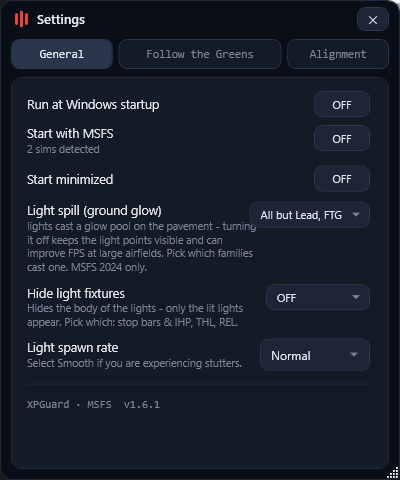
General
Section titled “General”- Update available - vX.Y.Z - XPGuard updates itself.
- When a newer version is found, a green card with release notes appears here, and the tab reads
Settings •. Once per session, a flyout and a tray balloon point you at it. - Download & update confirms, downloads, and closes XPGuard. Run the setup, then reopen XPGuard yourself.
- Updating is refused while MSFS runs - close the sim and press Update again.
- When a newer version is found, a green card with release notes appears here, and the tab reads
- Run at Windows startup - launch XPGuard with Windows. Pair it with Start minimized to go straight to the tray.
- Start with MSFS - register XPGuard in the sim’s add-on launcher (
exe.xml), so MSFS starts it and closing MSFS closes it. This is independent of Run at Windows startup. With no MSFS install it is grayed out, and a line under it says so. You must close MSFS before toggling it - the sim locksexe.xmlwhile it runs. See the caution below. - Start minimized - launch straight to the tray, with no window.
- Light spill (ground glow) - each lit fixture casts a glow pool on the ground. Turning it off keeps the light points visible and can improve FPS at large airfields. Pick which families cast one: stop bars, THL, REL, Lead-On/Off, FTG. Lead-on starts off. MSFS 2024 only - on 2020 every family always casts its pool and this setting does nothing.
- Hide light fixtures - hides the body of the lights so only the lit lights appear. A checkbox popup picks which: Stop bars, THL, REL.
- Light spawn rate - controls how many lights spawn per second. Selecting “smooth” helps to prevent stutters at FTG capable large airports.
- Light radius - how far around your aircraft XPGuard creates lead-on lights, the re-lit taxi centerline greens (FTG put-back) and the light fixtures. Lower values improve performance at large airports. 150-3000 m (default 600 m);
3000 mmeans no limit.- Lead-off, stop bar, THL, REL and IHP lights always show, at any distance.
- In contribution mode every light shows.
Follow the Greens settings
Section titled “Follow the Greens settings”- Auto-accept control requests - accept a controller’s FTG request without the popup.
- Do not show FTG card - hide the in-sim active-session mini card. The green
Cancel FTGbanner on the status card takes over. (The Accept / Reject request popup is unaffected.) - Hide other traffic’s FTG - only your own green route shows; other aircraft’s Follow-the-Greens stay dark.
Alignment
Section titled “Alignment”Height offset - a small vertical nudge for when the lights sit above or under the pavement on your system.
- One slider, −5 m to +5 m in 0.05 m steps.
Resetputs it back to 0. The offset is not saved - every launch starts at 0.
This is a personal tweak. For a bar sitting in the wrong place, use contribution mode.
The tabs
Section titled “The tabs”Six tabs switch the lower panel:
| Tab | Shows |
|---|---|
| Stopbars (N) | Every controlled stop bar, the runway it protects, and whether it is red. |
| Lead-on (N) | Lead-on light rows - one per branch, named after the stop bar it leads through. In contribution mode, clicking a row jumps to that bar. |
| REL (N) | Runway entrance lights - one row per mapped holding position, grouped by the runway it guards. |
| THL (N) | Takeoff hold lights - one array per runway end, derived from the runway geometry. |
| Log | The live log, at Info (default) or Debug. Saved to XPGuard-MSFS.log next to the app. |
| Settings | Opens the Settings window (see above). |
Next: Check scenery lighting, then start your first flight.