
Map REL rows
Mapping REL rows
Section titled “Mapping REL rows”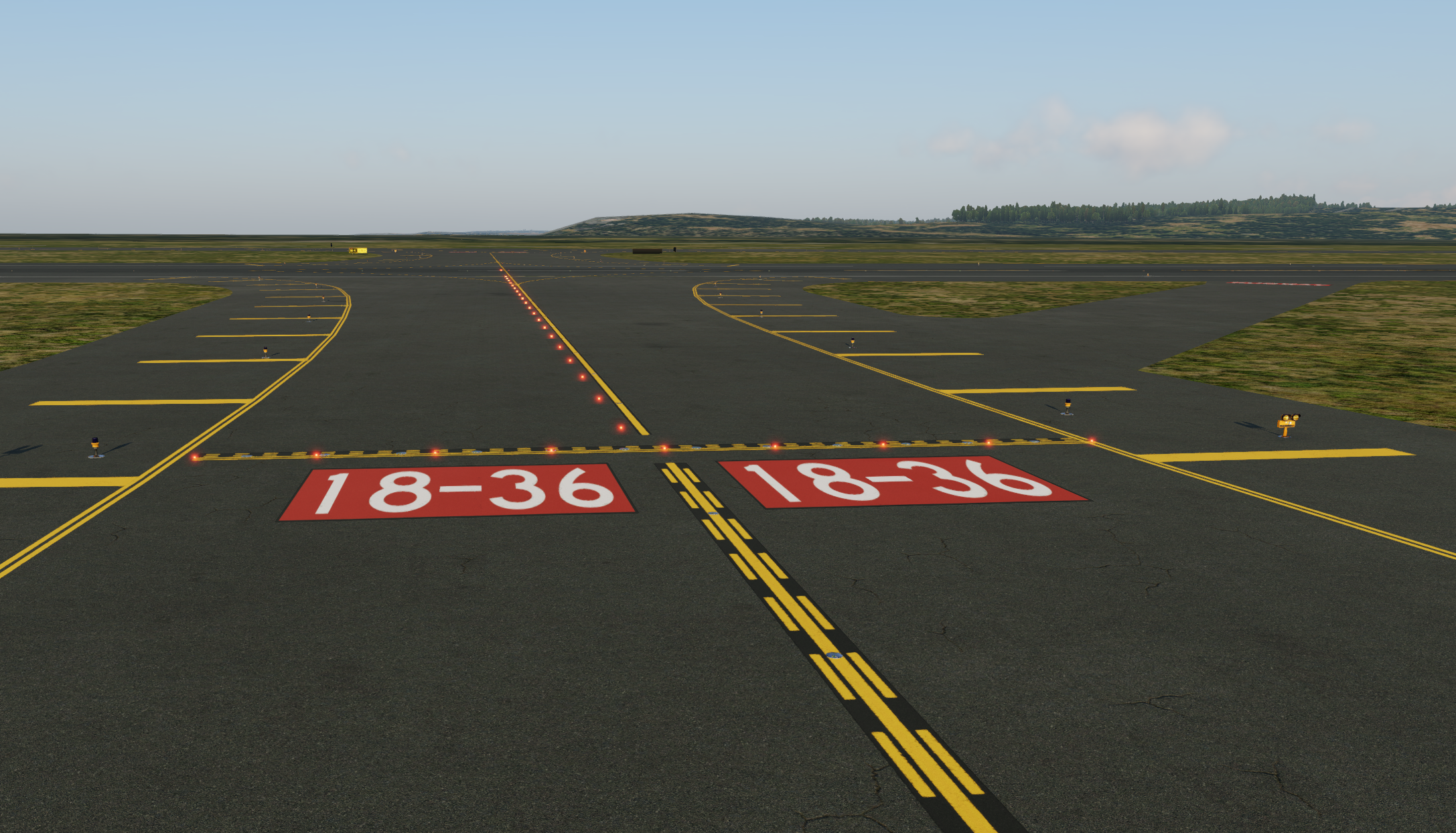
Runway Entrance Lights are a separate map from the stop bars, authored in the same editor.
- The
Bar | Lead-On | Reltabs at the top of the sidebar switch between them. - A REL row is submitted and reviewed with the rest of your map.
- The Rel tab is open to moderators for now. To apply, reach out on Discord.
Where a row starts and ends
Section titled “Where a row starts and ends”A REL row runs from the holding position, along the taxiway, and onto the runway. The holding position is usually the CAT I one - the outer hold line where an aircraft waits in normal visibility.
Route it down the middle. Where the taxiway splits into two on the way to the runway (a Y, or a widened entrance), take the path through the center of the split and straight onto the runway - not down one branch. The server spaces the lights along the line you draw, so the line is the row.
Shaping the path
Section titled “Shaping the path”Trace Scenery Lines- fit the line to the lines the map is drawing: the add-on’s own lines in a paired MSFS session, X-Plane’s paint otherwise. Several fits offer a choice, exactly like the FTG editor.Trace sim- the same, from a breadcrumb trace you drove in the sim (see below). The button readsTrace MSFSorTrace X-Planewhen paired.Add shape points…- click along the line to drop points by hand. Add a bezier handle to a point and drag the arm to bend the curve (the simulator follows that curve).Snap- the same magnet as the Lead-On tab, one shared setting. Click to cycle the source it pulls points onto.Protects runway- derived from the nearest centerline. Pick one to confirm or correct it.Light side-Autois the approaching pilot’s left, which also keeps the row clear of the Follow-the-Greens centerline lights. PickRightwhere that side is already taken.
Tracing in a paired sim
Section titled “Tracing in a paired sim”The most accurate way to shape a row in MSFS is to drive the path yourself and fit the line to your track. It is the same trace flow the FTG editor uses.
- Open the editor from the app in a paired session, so the sim and the browser share a cursor.
- Press
Ctrl+Shift+Tto start recording a breadcrumb trace. Press it again to stop. (X-Plane: bind theXPGuard/ftg_trace_togglecommand to a key.) - Taxi from the CAT I hold, through the split, onto the runway. Then click
Trace MSFSto snap the line onto what you drove.