
XPGuard Launcher
The XPGuard Launcher is a small app that runs before X-Plane 12. It:
- installs and updates the XPGuard plugin,
- suppresses the scenery’s own lights under XPGuard’s lights, so you do not see two sets of lights (recommended),
- installs the xPilot bridge,
- starts X-Plane,
- updates itself.
The launcher window
Section titled “The launcher window”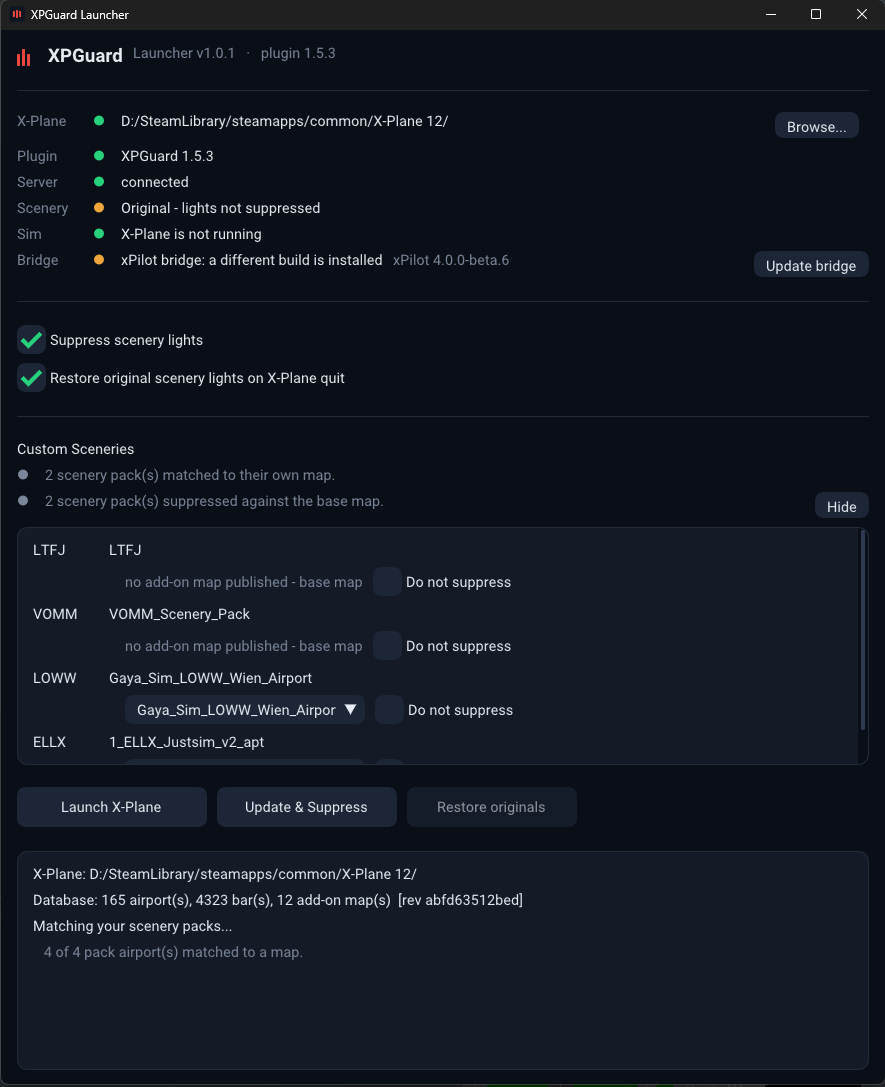
The top of the window has one row per item. A green dot means ready. Amber means an action is waiting. Red means something is missing or blocks the launcher.
| Row | What it shows | What to do |
|---|---|---|
| X-Plane | The X-Plane 12 folder the launcher found. | If it says not found, click Browse… and pick your X-Plane 12 folder. |
| Plugin | XPGuard <version>, or XPGuard is not installed. An amber -> <version> available means an update is out. |
Click Install or Update. X-Plane must be closed. |
| Server | connected when the launcher can reach xpguard.net. |
The launcher needs it to install the plugin and to suppress lights. |
| Scenery | Original - lights not suppressed, or XPGuard modified - lights suppressed (N airports in M file(s)). |
See Suppress scenery lights. |
| Sim | Whether X-Plane is running. While it runs, the scenery is locked and most buttons are disabled. | Close X-Plane to change anything. |
| Bridge | The xPilot bridge. xPilot: not detected is normal if you do not use xPilot. |
With xPilot, click Install bridge (or Update bridge), then restart xPilot. |
Suppress scenery lights
Section titled “Suppress scenery lights”The launcher suppresses the scenery’s own lights under XPGuard’s lights, so you see only one set.
Suppress scenery lights- on by default (recommended). With it on, Launch X-Plane suppresses first, then starts the sim. With it off, Launch X-Plane puts the original lights back first.Restore original scenery lights on X-Plane quit- on by default. When you quit X-Plane, the scenery gets its original lights back.- The launcher keeps a copy of every file it changes (
apt.dat.xpguard-orig, next to the original). Restore originals puts the originals back.
If a scenery pack was updated after the launcher copied it, the launcher says N scenery file(s) were updated while XPGuard still held a copy of the older version. Nothing is suppressed there until you click Delete the old copies. Your current scenery is not touched; only XPGuard’s copy is removed.
Custom Sceneries
Section titled “Custom Sceneries”If you have add-on scenery packs, the Custom Sceneries panel lists them. For each pack, the launcher picks the matching XPGuard map (the publisher).
- A pack the launcher cannot match shows Pick the map. Choose the pack’s publisher, or Base map, then click Update & Suppress.
- Do not suppress leaves that pack’s own lights untouched.
- Show all also lists the packs that are already matched, so you can change a choice.
Buttons
Section titled “Buttons”Launch X-Plane- suppresses the lights (or restores them, if suppression is off), then starts X-Plane. The launcher closes itself once X-Plane is running.Update & Suppress- updates the maps and suppresses the lights without starting the sim.Restore originals- puts the scenery’s original lights back. It works only while lights are suppressed and X-Plane is closed.
Updates
Section titled “Updates”- The launcher checks for a new plugin every time it starts. When the Plugin row shows an update, click Update.
- The launcher also updates itself when it starts. The top line then says
updated. Click Restart now to use the new version.
Next: Check your X-Plane settings.