Follow the Greens in MSFS
Review your MSFS settings before using these controls.
Follow the Greens
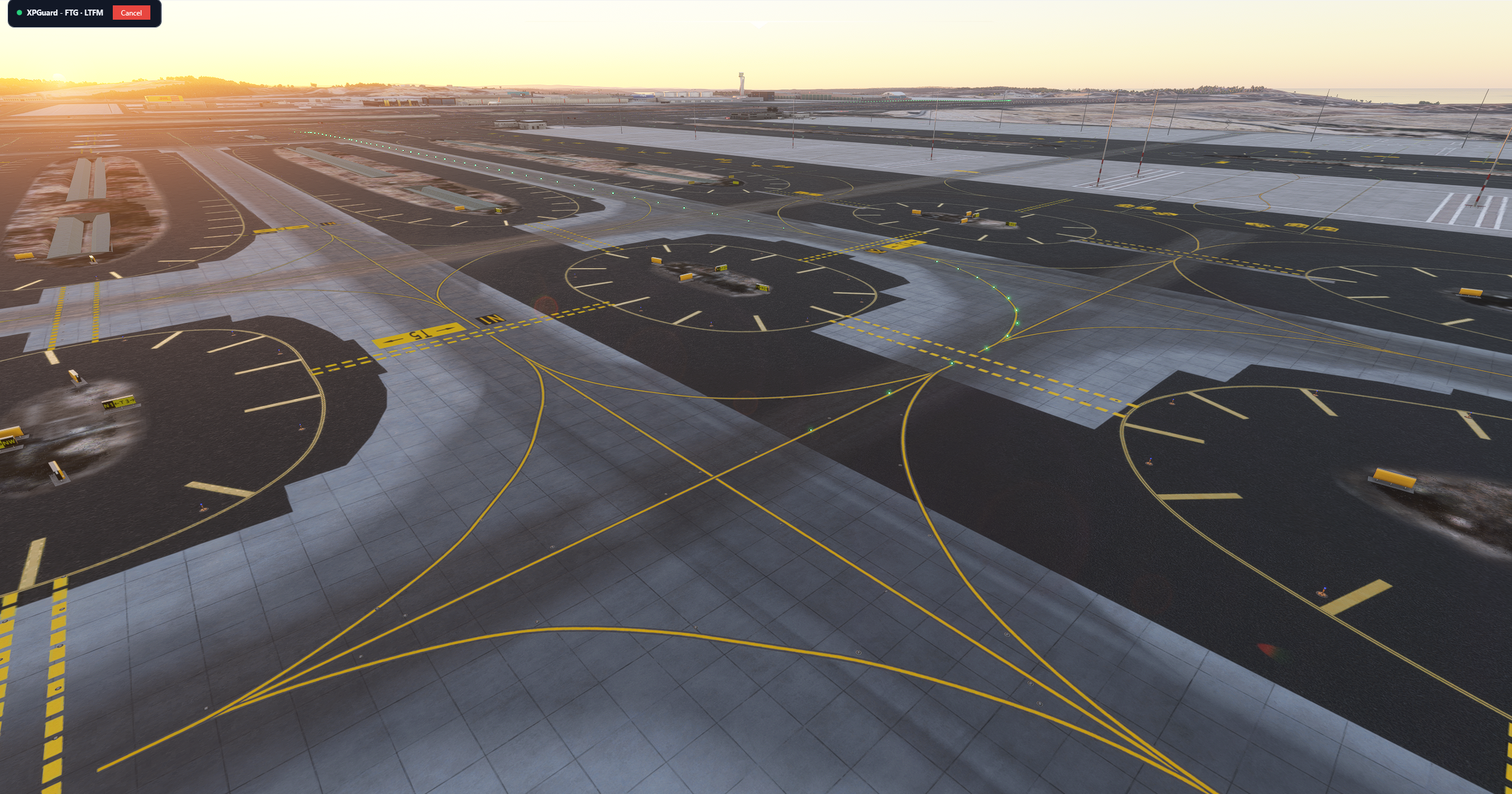
Section titled “Follow the Greens”Green taxiway centerline lights a controller switches on to lead you along your cleared route (figure below).
- Controller-driven and VATSIM-only - there is nothing to switch on in the app.
- Needs a controller who offers it and a published taxi network for the scenery you fly. Check the main website for supported airports.
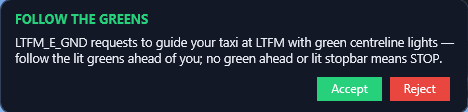
- A controller starts FTG. A consent popup (first figure below) names them, with Accept / Reject. (Turn on Auto-accept in Settings - the popup offers the same checkbox.)
- Accept, and an always-on-top mini card (second figure below) shows the session is live. Hide it with Do not show FTG card and cancel from the status-card banner instead.
- Greens trace your route on your installed scenery. Follow them. The lit stretch rolls forward with you as ATC advances the route.
- The greens stop at your hold-short bar - where the line ends is where you hold. They extend past it once you are cleared, and never light green past a red bar.