
MSFS scenery and lighting
Scenery & publisher
Section titled “Scenery & publisher”Each 3rd party scenery addon provider place their markings in slightly different places. So XPGuard keeps a separate stop-bar map per scenery. The app reads which scenery you are using from the add-on’s own package info and shows it on the status card (figure below).
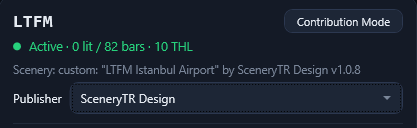
What you get:
- Base map - This is the baseline map that comes from the X-Plane data. If no publisher exist for your airport, you can still use the base map but expect some position offsets.
- An add-on you installed → XPGuard auto-selects that publisher (MSFS · <creator>) and serves its aligned bars, when a map exists.
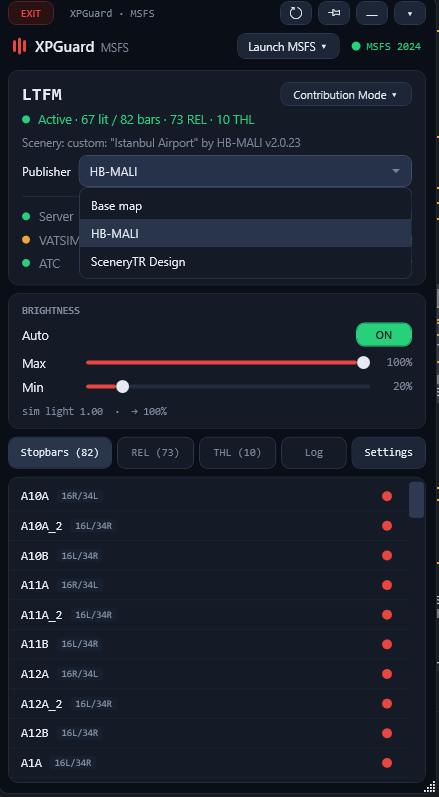
The Publisher dropdown (figure below) sets it by hand, and a hand-pick is remembered for that scenery. You normally never touch it - XPGuard matches your scenery and auto-selects. The list only offers publishers already published here. If yours is not listed, no map for it has been contributed yet - you can be the first.
Suppress scenery lights
Section titled “Suppress scenery lights”Many add-on and stock airports place their own stop-bar lights into the scenery. Those are always on - they never follow the controller. Suppress scenery lights on the status card blanks them at supported airports, so the only lights you see are the ones XPGuard controls.
- ON by default. Flip the toggle under Publisher to turn it off.
- The first enable downloads suppression files. An amber line under the toggle reads
Preparing suppression files - wait before starting MSFS; a tray balloon tells you when it is ready and you can start the sim. - MSFS reads scenery once, at startup. If the sim is already running when the files change, XPGuard names the airports and asks you to restart MSFS. Starting the sim from the app’s
Launch MSFSbutton keeps the files current automatically. - Works on MSFS 2020 and 2024.
- When more than one add-on draws the same airport, a Which add-on? question appears. Pick the scenery you actually see; XPGuard remembers the answer.