
X-Plane settings
Open the control panel
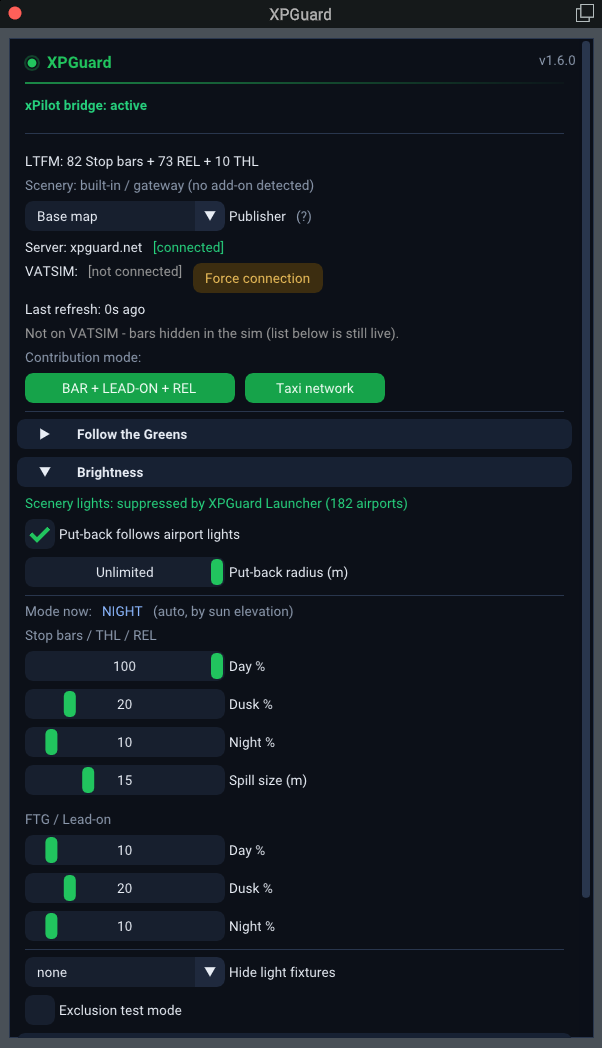
Section titled “Open the control panel”Everything lives in the control panel (figure below).
Status block
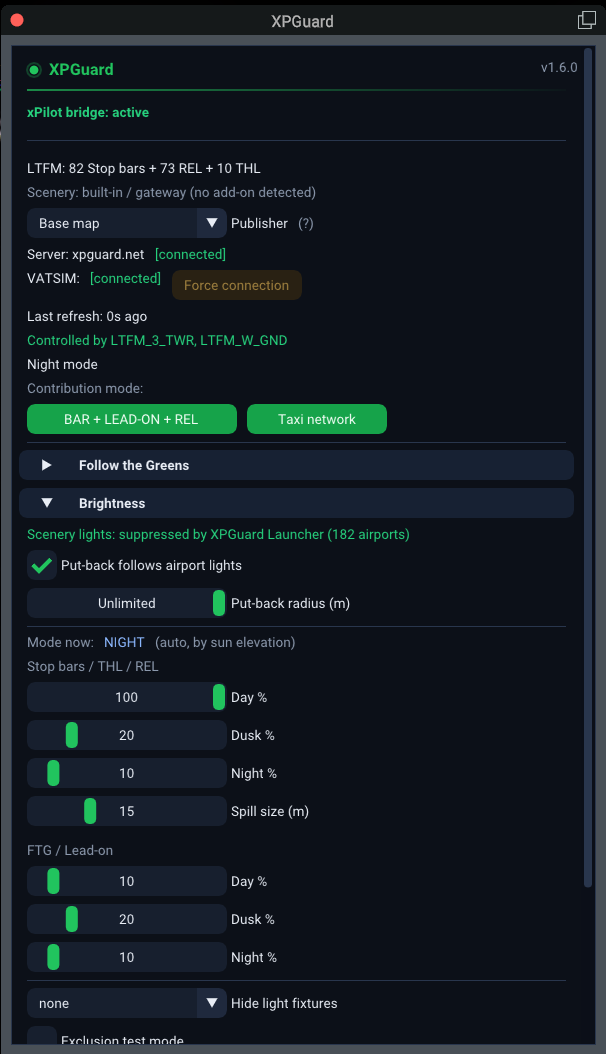
Section titled “Status block”The top of the panel tells you what is happening right now (figure below):
- The airport and its light counts -
LTFM: 12 Stop bars + 3 REL + 2 THL. Server:andVATSIM:connection state.Controlled by …- who is running the position (or Lights are not controlled (OFF) if nobody is). While a controller is online, aDay mode/Dusk mode/Night modeline names the live brightness band.- If a new version is out, an
Update availableline appears with aGet launcherbutton. The launcher installs the update. - On Windows, with xPilot running, an xPilot-bridge status row sits at the very top - see the xPilot bridge.
When you are above 1,000 ft, the panel shows Standby mode (Altitude > 1000 ft AGL).
Publisher
Section titled “Publisher”The Publisher dropdown picks which scenery’s stop-bar map you get here. It is auto-selected from your detected scenery. Override it only if it reads wrong.
Brightness
Section titled “Brightness”Found under the Brightness section. At the top, a read-out says whether the scenery’s own lights are suppressed. Under it are the two put-back settings, Put-back follows airport lights and Put-back radius (m) - see Scenery lights and the put-back. Below them, a Mode now: readout shows which of DAY / DUSK / NIGHT is live. This is chosen automatically by sun elevation.
There are two color groups:
Stop bars / THL / REL - the reds share the glow:
| Setting | What it does | Default |
|---|---|---|
Day % |
Red glow strength in daytime | 100 |
Dusk % |
Red glow strength at dawn/dusk | 20 |
Night % |
Red glow strength at night | 10 |
Spill size (m) |
Pool of light each fixture casts on the pavement, in the beam direction | 15 |
FTG / Lead-on - the Follow the Greens lights, with their own triple:
| Setting | What it does | Default |
|---|---|---|
Day % |
Green light strength in daytime | 100 |
Dusk % |
Green light strength at dawn/dusk | 20 |
Night % |
Green light strength at night | 10 |
Below both, Hide light fixtures picks which families skip their dark housings - see below.
These sliders do not change lead-on/off and IHP lights. Green and amber lights use X-Plane’s own taxiway light objects. The FTG / Lead-on sliders change only the Follow the Greens lights.
Hide light fixtures is a multi-select. Tick any of Stop bars, THL and REL.
- A hidden family stops drawing its dark in-pavement housings.
- So only the lit lights appear when a controller switches them on.
- Pick per family. The preview line reads
none,all, or the list you chose. - Contribution mode always shows the housings - they are the draft preview.
Scenery lights and the put-back
Section titled “Scenery lights and the put-back”At the top of the Brightness section, a read-out reports the scenery’s own lights:
Scenery lights: suppressed by XPGuard Launcher (N airports)- the launcher suppressed the scenery’s own lights under XPGuard’s lights X-Plane started.Scenery lights: untouched - run XPGuard Launcher to suppress them- nothing suppressed yet. Suppression lives in the launcher (Suppress scenery lights, on by default - recommended) and only works when X-Plane is started from it.
While no ATC is controlling a bar, or while you are not connected to VATSIM, the plugin restores the scenery’s own lights. Two settings under the read-out control this put-back:
Put-back follows airport lights- on by default. The green put-back lights (lead-on/off and the FTG taxiway centerline) are on only while X-Plane’s own airport lights are on. X-Plane decides when that is, so they can come on by day too, for example in low visibility. The amber hold-short lights put back at a bar stay on. Untick it to keep the whole put-back on all the time.Put-back radius (m)- how far from the aircraft the put-back is laid. It follows you as you taxi. Default:Unlimited- the whole field, paced over a few seconds.- With nothing suppressed by the launcher there is no put-back. The scenery keeps its own lights, and these two settings and
Exclusion test modeare greyed out.
Log level
Section titled “Log level”Log level - Info (default) or Debug.
- Written to X-Plane’s
Log.txt.
Alignment
Section titled “Alignment”Alignment → Height offset (m) lifts or sinks every XPGuard light at the airport (±5 m, 0.05 m steps).
Reload
Section titled “Reload”At the very bottom is Reload (re-detect airport + light objects).
- It re-detects the nearest airport and reloads the light objects. No restart.
- Use it if you changed airport and the bars did not follow.
Force connection
Section titled “Force connection”Next to the VATSIM: line is an amber Force connection button.
- Use it when the plugin does not detect a VATSIM connection: when you fly without VATSIM, or when you are online but the plugin cannot read your pilot client.
- Switched on, the row reads
[forced]and the lights appear - stop bars, THL, REL and lead-on.
Next: Start your first flight.