Controllers — vatSys
Claim a runway, then switch its bars. The XPGuard vatSys plugin lets you drive an airport's stop bars and arm its Takeoff Hold Lights (THL) live over VATSIM, straight from vatSys.
- Pilots running XPGuard in MSFS or X-Plane see the lights you switch.
- You never touch a light in your own sim.
What the vatSys plugin does — and doesn't
The vatSys plugin does stop bars and THL only.
Follow the Greens, Runway Entrance Lights (REL) and lead-on lights are EuroScope-only. Use the EuroScope plugin for those.
Everything happens in one window:
- A left-hand tree of your claimed airports.
- A self-drawn ground map of the selected one.
vatSys gives plugins no radar canvas, so XPGuard renders its own map inside the window.
Installation
- Download the vatSys plugin from xpguard.net — no account needed. (You will need one later, for your token.)
- Unblock it first. Right-click the
.zip→Properties→ tickUnblock→OK. Then extract. - Copy
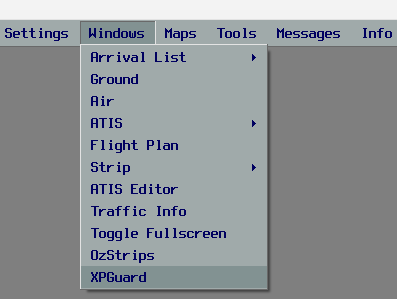
XPGuardVatsys.dllinto the vatSys Plugins folder. This is usuallyC:\Program Files (x86)\vatSys\bin\Plugins. - Launch vatSys. An XPGuard entry appears in the Windows menu (figure below).
- Click that entry to open the window.
Don't skip the unblock step
Windows marks files downloaded from the internet. If you skip Unblock,
vatSys silently refuses to load the plugin.
One profile only
Want XPGuard for a single vatSys profile instead of globally? Drop the DLL
in Documents\vatSys Files\Profiles\<profile>\Plugins instead of the
bin\Plugins folder.
Set your token once
The token proves it is really you switching the lights. It is the same token the EuroScope plugin uses.
- On your dashboard, open
Controller token→Generate token→Copy. - Paste it into the Token box in the XPGuard window.
- Click
Save.
It is remembered — a one-time step. Keep it private.
Update check
Shortly after loading, XPGuard checks for a newer version. If one exists, an amber Update available banner appears at the top of the window. Click it to open your dashboard and download the new build.
Settings
Everything lives along the top of the XPGuard window.
| Setting | What it does | Default |
|---|---|---|
| Token | Your API token — paste once, click Save. |
empty |
| Auto | A bar you clear re-lights itself after the delay beside it (10–60 s). Leave it off to clear bars by hand. |
off, 45 s |
| THL sound | One short alert when a runway's THL lights for a predicted runway incursion — see THL. | off |
| THL horizon (s) | How many seconds ahead THL anticipates a crosser (3–30). |
12 |
| XPG status | Marks traffic running XPGuard with a green ring — those pilots see your bars. Refreshes every ~15 s. | on |
Every control writes your settings.json (in %LocalAppData%\XPGuard\) as you
change it. There is nothing to save by hand except the token.
Stop bars
- Be online. Connect your position first — claiming while offline is refused.
- Add your airport. Type the ICAO and click
Add(or pressEnter). Its ground layout draws on the map with the bars marked. Up to 6 airports at once — click an airport in the tree to switch the map to it. - Claim a runway. Tick it under the airport in the tree. Untick to release. Apron and taxiway bars sit under APRON (shared) — a claim several controllers can hold at the same time, and it has no THL. See APRON.
- Set a bar. Left-click it on the map — red (hold short) or dark (dark). Only works on runways you hold.
-
Pin a bar.
Ctrl+ left-click toggles it and pins it (marked*) so Auto leaves it alone. A plain left-click releases the pin. -
Remove an airport. Select it in the tree and press
Delete. Every claim there is released.
| Bar | Meaning |
|---|---|
| Red | Hold short — do not cross. |
| Dark (off) | No restriction from this bar. There is no green state. |
A tick that clears itself = refused
The tree shows only your own claims and gives no error message. If a tick clears a moment later, then one of these is true:
- Your token is missing or wrong.
- Someone else already holds that runway.
- Your position is not eligible there.
One controller per runway — see who can claim what.
- The pin is local to your window. It is not sent to the server. Other controllers cannot see it. It is forgotten on restart.
- Live traffic: green dots are moving, blue dots are stationary. Each is tagged with its callsign.
- A green ring means that pilot is running XPGuard, so they see your bars.
- Navigate the map: zoom with the mouse wheel. Pan by dragging with the right or middle button.
Give it a second
A claim or a toggle takes a few seconds to show. Don't click repeatedly.
Closing the window releases nothing
Closing the window only hides the view. Your claims stay held, the heartbeat keeps them alive, and an armed THL keeps driving the lights.
To let go, do one of these:
- Un-tick the runway (or its THL node).
- Disconnect from VATSIM.
- Close vatSys.
On a disconnect, claims drop a few seconds later — so a quick reconnect keeps them.
Takeoff Hold Lights (THL)
The same automatic runway-conflict monitor as EuroScope. It draws a double row of red lights down the runway for an aircraft lined up to depart. They light whenever the runway ahead is occupied or about to be crossed.
- It is fed from your live vatSys tracks.
- It runs on anticipation.
- It needs an active controller.
For the full picture see Takeoff Hold Lights.
Arm and release
- Arm it. Each runway in the tree has a THL child node. Tick it. The monitor lights and clears the runway from live traffic automatically. You do not switch it bar by bar.
- THL is independent of the bar claim, but is itself a claim: one controller per runway. It follows the same eligibility, heartbeat and expiry rules as a bar claim — see who can claim what.
- Unticking releases it.
Nothing draws on the vatSys radar
Unlike EuroScope, the THL picture appears only inside the XPGuard window's own map:
- The lit extent as a thick red line.
- An amber ring around the conflicting aircraft.
- A
THL <runway>label at the aircraft in position.
Rather not watch the window? Turn on THL sound.
THL never replaces a verbal clearance
Exactly as in EuroScope, THL is an advisory aid. It does not issue or imply a takeoff clearance, and the lights going dark is not one.
Keep clearing takeoffs verbally — pilots are told the same.
Further reading — RWSL in the real world
XPGuard's THL follows the Runway Status Lights (RWSL) system. RWSL is an ICAO-recognised runway-safety concept operated in the real world by EUROCONTROL and the FAA: